
There are two ways of adding transactions to Asora’s platform:
Adding a transaction through the ‘+’ button
This method is recommended when you have a small number of transactions to add.
Transactions are split up into 6 different types:
- Buy
- Sell
- Income
- Expense
- Contribution
- Withdrawal
Following these steps should allow you to add a new transaction with the specified details.
Bulk importing transactions
This method is recommended if you wish to add a large number of transactions, or transactions for different accounts at once.
Preparing the import file
The following file can be used as a template to import transactions.
- Trade Date & Settlement Date
Here we need the date the actual transaction was placed or ordered and the date it was settled. - Type & Sub Type
This is the transaction type which you are uploading.
If you are unsure of the transaction type, the import file template attached above should help clarify which Type & Sub Type to use for your transactions. - Account Plain ID
Here we simply need the account number to which the transaction relates.
This can also be the account in which the asset or liability is held. - Asset ID & Asset Name
We need the ISIN, SEDOL or CUSIP for the asset which is involved in the transaction.
You can input the asset name also however our server will pick up on the Asset Identifier and display the official name of the security.
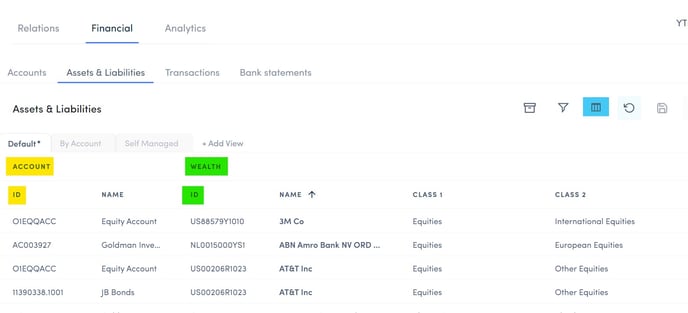
The Account ID and the Asset ID (account_plain_id and asset_id in templates above) are two identifiers that help transactions and holdings to be mapped correctly. Both these IDs can be located in the Datahub > Financial > Assets & Liabilities. In the image below, the Account ID is highlighted in yellow and the Asset ID is highlighted in green. If you don't see these columns in your table, you will need to add them to the view by clicking on the Column Selector icon (highlighted in blue) and selecting the respective columns.
- Units & Amount
Here we require the amount of units involved in the transaction, for example if you are buying or selling X amount of an asset.
Importing
Once your file is ready, these steps should be followed to import your transactions in bulk:
- Once logged into your Asora account, navigate to Connections on your left navigation menu. Then click on Import.
- Click on Import Transactions. You can either choose a file from your computer or drag and drop it on the page.
- Once your file is chosen, click on Import.
- Your transactions are now imported.