
One of the most important steps in getting started with Asora is importing your financial data, including holdings and transactions, into the platform.
In this guide, we will provide you with a step-by-step approach on how to import your holdings and transactions for private assets into Asora, so you can take advantage of its robust features and functionality for better private asset tracking and reporting.
Importing holdings and transactions
The easiest way to import holdings and transactions in bulk is by uploading an Excel document with all the data into Asora. The following excel templates can be used to import data:
To avoid incorrect mapping of data, make sure your holdings/transactions have all the required details as shown in the templates above.
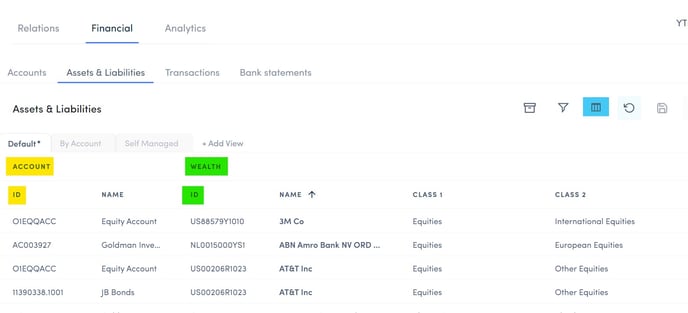
The Account ID and the Asset ID (account_plain_id and asset_id in templates above) are two identifiers that help transactions and holdings to be mapped correctly. Both these IDs can be located in the Datahub > Financial > Assets & Liabilities. In the image below, the Account ID is highlighted in yellow and the Asset ID is highlighted in green. If you don't see these columns in your table, you will need to add them to the view by clicking on the Column Selector icon (highlighted in blue) and selecting the respective columns.
Once your import file is ready, go to Connections > Import and select Import Holdings or Import transactions depending on the data being imported. Then, click on the file selector or drag and drop your import file in the space provided. Then, click on Import.
The screen will then show you a success message if the file is successfully imported, or flag the error which prevented the file from being imported.