Adding a bank account
Asora allows open banking connections to more than 10,000+ financial institutions globally. To add a bank account, follow the steps shown in the video below:
Connecting a bank account
We use two providers to connect bank accounts to Asora - Saltedge and Plaid. Between these, they cover a wide majority of banks across Europe, North America and Globally. Follow the steps below to connect a bank account:
Reconnecting expired accounts follow the same steps. Instead of 'Pending', the accounts would be marked 'Expired'.
- On the left navigation menu, click on Connections
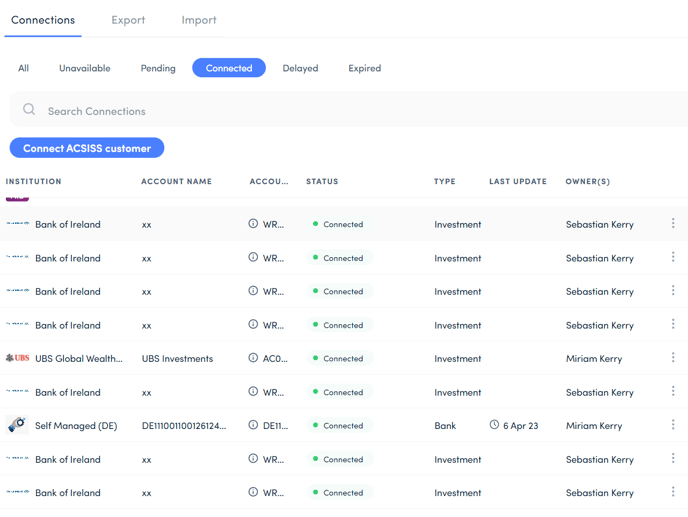
- You will see all your bank and investment accounts under the Connections dashboard.
- Accounts are categorized according to the following connection statuses:
- Unavailable: This means that there is currently no provider connection available between your bank and Asora.
- Pending: This means that there is a connection available, but your bank accounts have not been connected to Asora yet.
- Connected: This indicates that your account is successfully connected to Asora, and data via Saltedge/Plaid is updated on the platform until the previous day's close of business.
- Delayed: This means there is an active connection between your bank account and Asora, but the data has not been updated as of the previous day's close of business.
- Expired: In compliance with EU Regulations, bank accounts must be reconnected every three months. An expired status indicates that a bank account's connection status needs to be refreshed.
- To connect your bank accounts, click on either the 'Pending' and 'Expired' tabs.
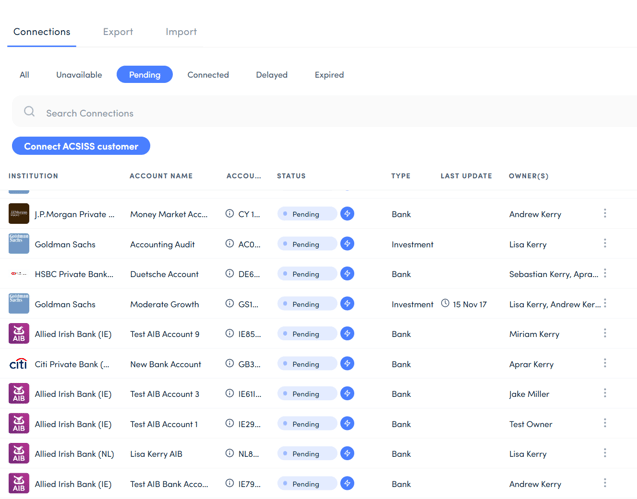
- Click on the Connect icon (⚡) that appears in the Status column. This will then give you an option to choose a provider to establish the connection. You will be able to choose between Saltedge and Plaid.
- Once a provider is chosen, you will be redirected to the provider's page to enter your bank details and connect the chosen account.
- Once connected, your account will appear in the 'Connected' tab under Connections.